Clean a messy spreadsheet with an AI-assisted, review-first workflow you can fully audit.
● PMG recommends this when a file has mixed dates, duplicates, or missing values.
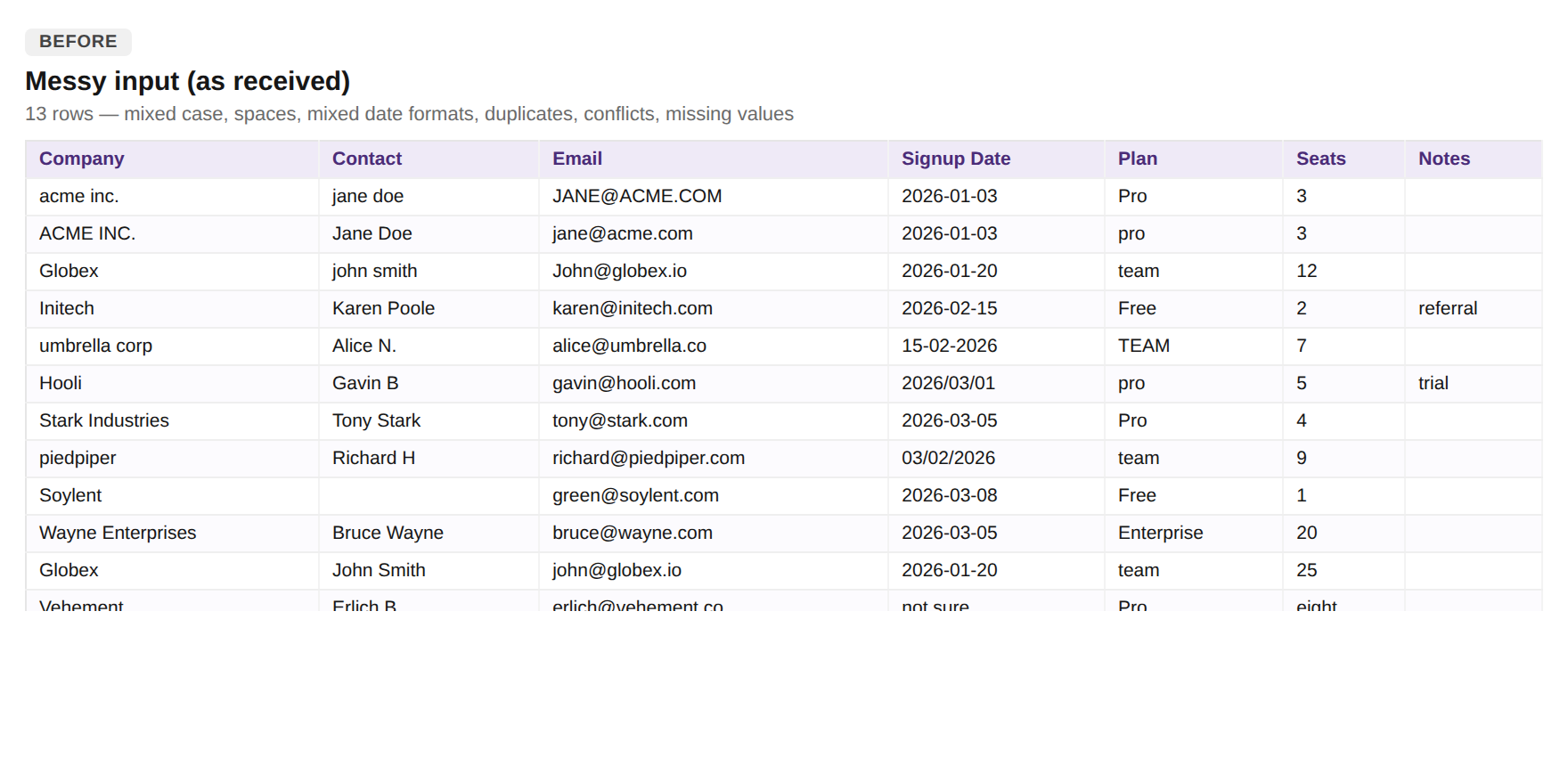
Before
Swipe sideways to see more →
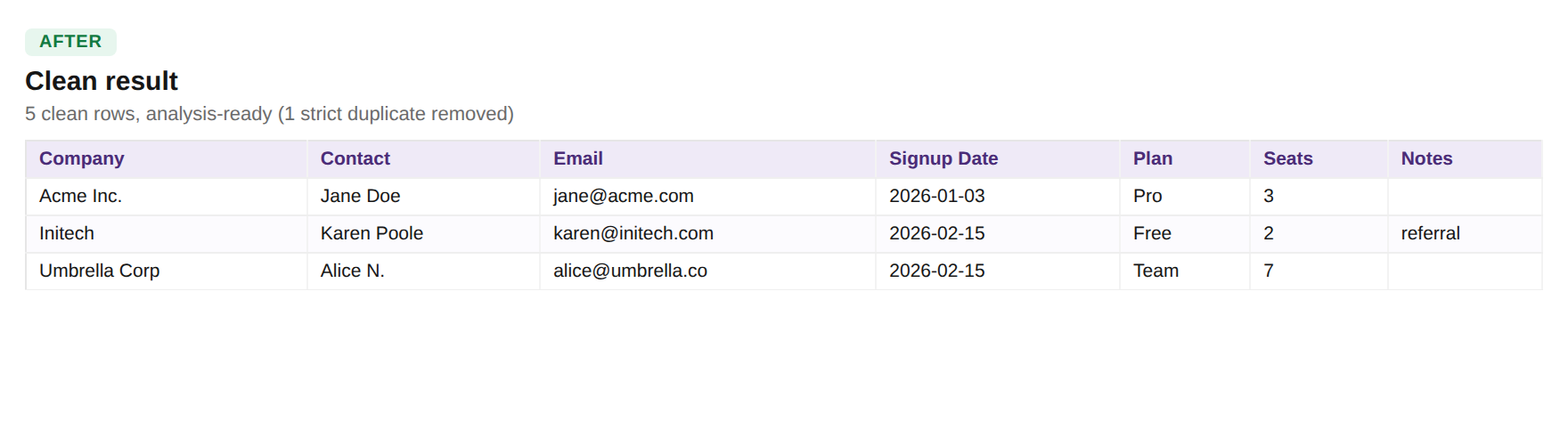
After
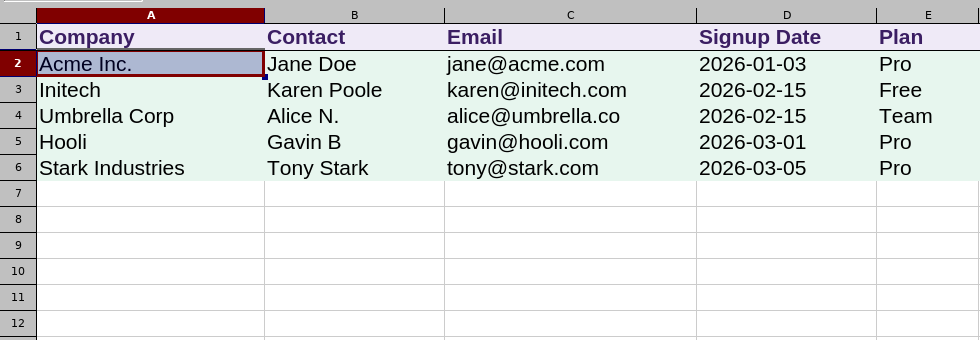
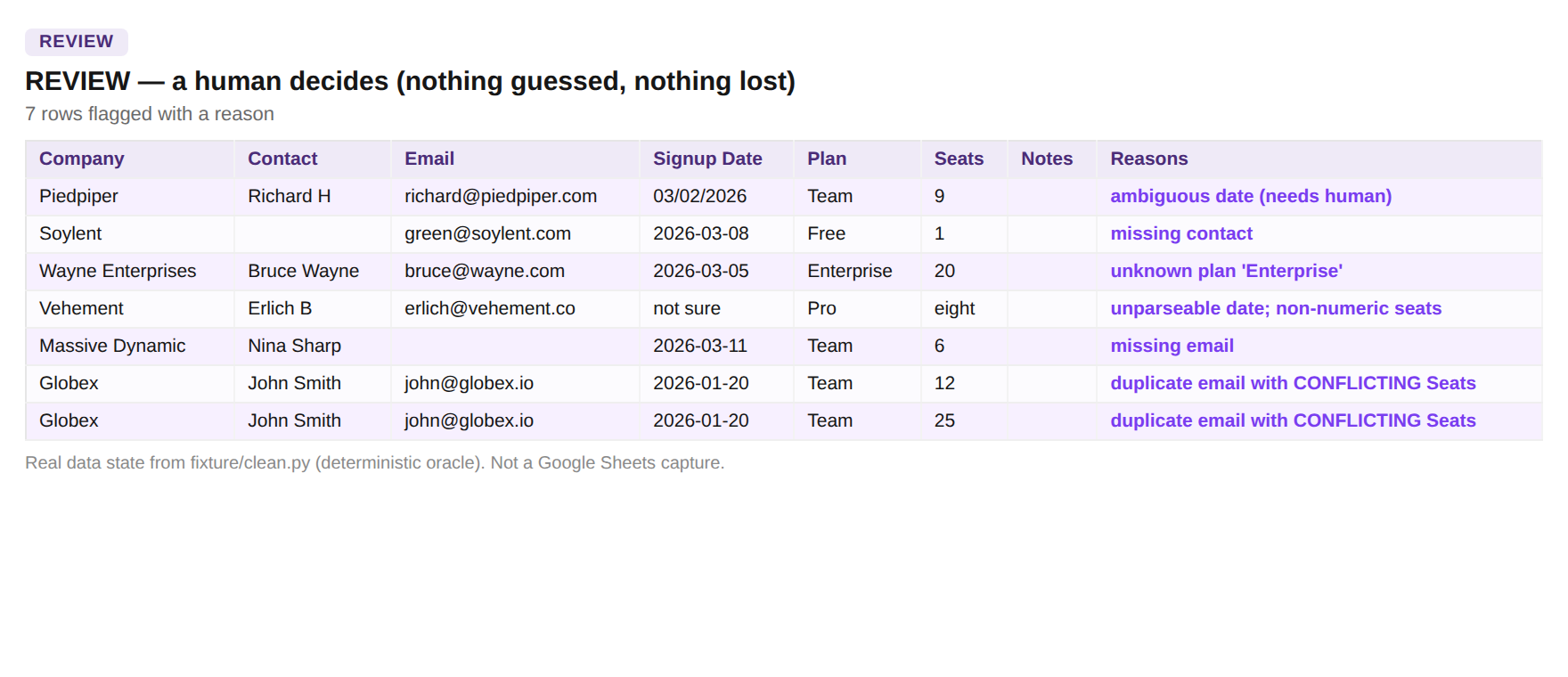
What you get: 13 messy rows → 5 clean rows, 7 sent to human review, 1 strict duplicate removed. Nothing guessed, nothing lost.
Time
Not measured yet
Level
Beginner
Steps
5
Works on
Phone · Laptop
What you need
●Works with a spreadsheet app and an AI assistant. Equivalent formulas are available in Google Sheets, Excel and LibreOffice Calc; separators, cell references and menu paths may vary.
Good to know
Validated in LibreOffice Calc (desktop): the decision workflow is computed by real formulas and reconciles 13 = 5 + 7 + 1. See the crops below.
Google Sheets (web) is an unverified variant. Excel is an unverified variant.
The AI-assisted diagnostic step has not yet been executed end to end in this validation environment; the prompt is provided for you to run.
This is a controlled demonstration on one sample file — not a universal data-cleaning engine. For very large files (10k+ rows), build the recipe on a sample, then apply it yourself.
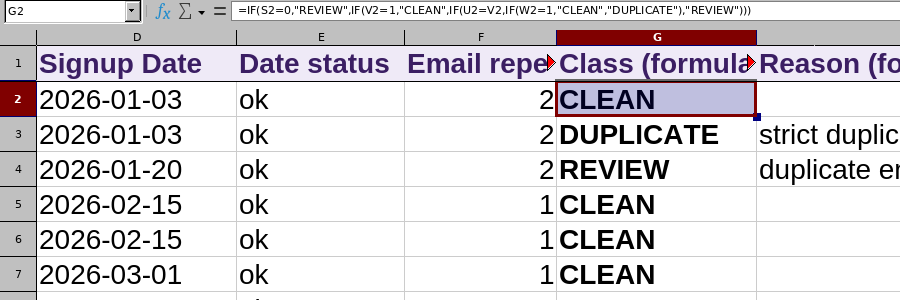
Calc workbook verified
The cleanup decisions are computed by real formulas in a LibreOffice Calc workbook and
independently checked. This is a workbook check, not a full-tutorial validation.
LibreOffice CalcThe Class column is computed by the sheet: CLEAN / REVIEW / DUPLICATE.
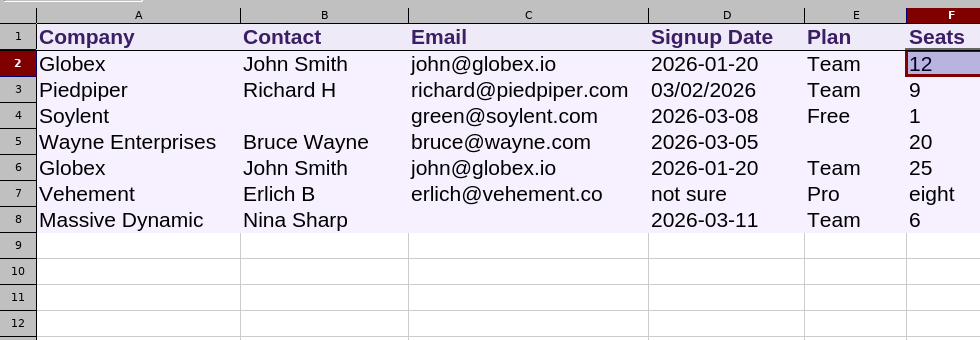
LibreOffice CalcBoth Globex rows (Seats 12 vs 25) kept in REVIEW — conflict, nothing lost.
Clean a messy spreadsheet — the review-first way1/5
Work on a copy — never the original.
Do this: Make a copy of the file (Sheets: File → Make a copy; Excel/LibreOffice: File → Save a Copy). Do all cleaning on the copy; keep the original untouched as your rollback.
Swipe sideways to see all columns →
✓ You have two files: the untouched original and the copy you'll clean.
More details
Why this matters. If a step goes wrong, the original is your rollback. Cleaning in place is the most common way people lose data.
Ask AI for a cleaning recipe — not a cleaned file.
Do this: Copy 15–20 sample rows, paste them under the prompt below into a free AI chat, and read the step list it returns. You want a recipe you can check, not a black-box file.
Here is a sample of a messy table and my target format. List the exact cleaning steps (trim, casing, date normalisation to YYYY-MM-DD, plan mapping to Free/Pro/Team, integer seats, dedup key = email). Then give me equivalent formulas for my chosen spreadsheet tool. Syntax, separators, cell references and menu paths may differ between Google Sheets, Excel and LibreOffice Calc. Do NOT fabricate data. Flag any row you can't confidently fix, and treat any date where day/month is ambiguous as 'needs review'.
Swipe sideways to see all columns →
✓ You get an auditable list of steps — you can see exactly what will change.
More details
Not yet validated here. The AI-assisted diagnostic step has not yet been executed end to end in this validation environment. The prompt is provided for you to run in your own AI chat.
Common mistake. Uploading the whole file and trusting the output blindly. Get the recipe so you stay in control.
Apply the formulas and fill down.
Do this: In a new column type =PROPER(TRIM(A2)) for names and =LOWER(TRIM(C2)) for email — these are exactly the formulas validated in the workbook below. For each formula, click the small square at the cell's bottom-right and drag it down to the last row to fill every row. Map plans and normalise unambiguous dates the same way.
Swipe sideways to see all columns →
✓ Names, emails, dates and plans now look consistent across every row.
More details
Alternative method. You can paste a date column back to the AI to convert in one batch — then spot-check five results against the source.
Send rows AI can't safely fix to a REVIEW tab.
Do this: At the bottom, click + to add a tab, name it REVIEW, and move the flagged rows there: ambiguous dates, missing contact/email, unknown plans, and any email that appears twice with DIFFERENT values. Do not guess them.
Swipe sideways to see all columns →
✓ Ambiguous rows are isolated WITH a reason — nothing is guessed, nothing is dropped.
More details
Why this matters. On this file, 7 of 13 rows needed a human — including a date like 03/02/2026 (is it 3 Feb or 2 Mar?) and an email that appears twice with different seat counts.
Dedupe last — and only strict duplicates.
Do this: Select the clean rows, then remove duplicates on Email (Sheets: Data → Data cleanup → Remove duplicates; Excel: Data → Remove Duplicates; LibreOffice: Data → More Filters → Standard Filter, no duplications). Only remove rows identical on every field. If two rows share an email but differ (like the Seats conflict), leave both in REVIEW.
Swipe sideways to see all columns →
✓ The 1 strict duplicate is gone; the email-with-conflict stayed in REVIEW. 5 clean rows, analysis-ready.
More details
Common mistake. Deduping before normalising, or removing a row that only LOOKS like a duplicate. Normalise first, dedupe strictly, keep conflicts for review.
✓
Guide completed
You turned 13 messy rows into 5 clean, analysis-ready rows — with 7 rows safely in REVIEW and 1 strict duplicate removed. Every change was auditable and no data was guessed or lost.